We’ve all been there. You fire off a massive expdp or impdp job, grab a coffee, and then realize you forgot a specific table, the load is killing the CPU production, or you simply clicked “Enter” before you were ready.
Panic sets in. Do you kill the OS process? Should you shut down the database? Take a deep breath.
Oracle Data Pump is actually quite sophisticated and flexible. Unlike the old original exp/imp, Data Pump allows you to pause, resume, and even kill jobs gracefully without corrupting your data or leaving a mess of temp files behind.
Here is your friendly guide to regaining control when a Data Pump job goes rogue.
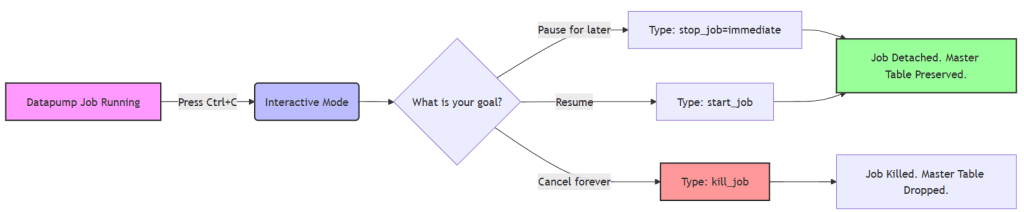
Scenario 1: “Wait, I need to stop this (but keep my data!)”
(The “Pause” Button)
Maybe you started a pump during the day and it’s dragging down the system. You don’t want to cancel it; you just want to pause it and resume it tonight. This is called Stopping the job.
Step 1: Enter Interactive Mode
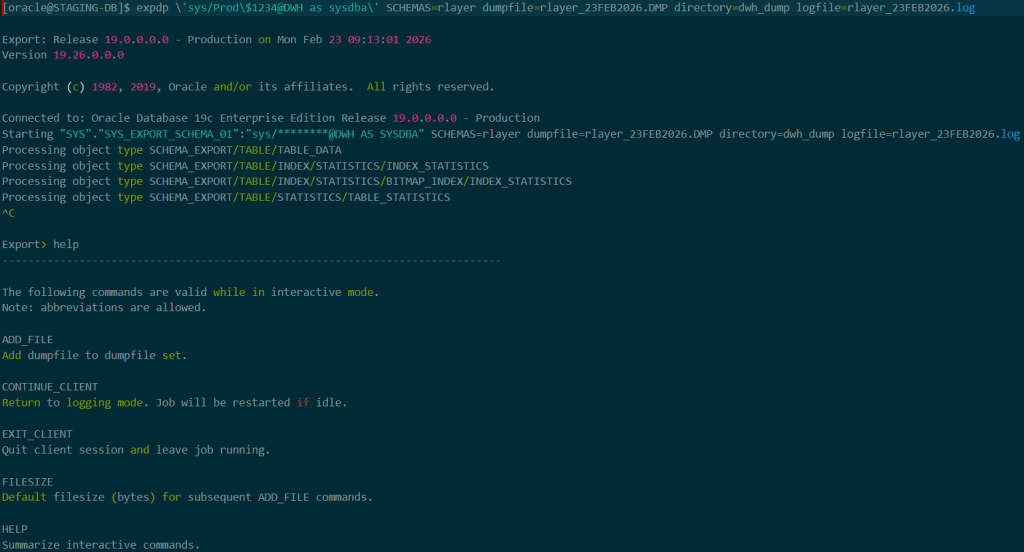
If your job is running in the foreground, simply press Ctrl+C. Do not close the terminal window! If you close the window, the job keeps running, but you lose control of it.
Pressing Ctrl+C stops the scrolling logs and drops you into the Export> or Import> prompt.
Step 2: Stop the Job
At the prompt, type:
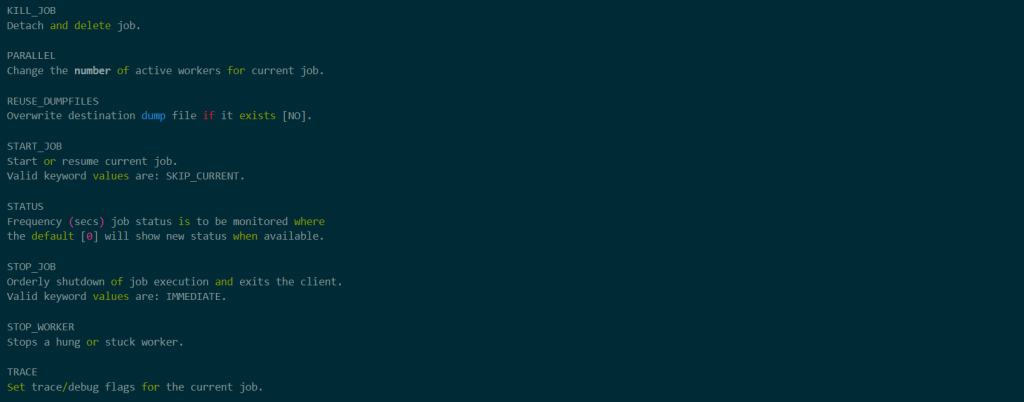
Export> stop_job=immediateNote: immediate is crucial. Without it, Datapump tries to finish the current worker process before stopping, which could take a while.
You will likely be asked to confirm. Type YES.
Oracle will gracefully shut down the workers and preserve the state of the job. It creates a “master table” in the database that remembers exactly where it left off.
Step 3: Resume the Job
When the workload is low on the database (e.g., at 2 AM), open your terminal and attach to the job. You don’t need to retype all the parameters; you just need the job name (which is usually in the log file or the screen output).
expdp userid=/ attach=YOUR_JOB_NAMEOnce you are in the prompt, simply type:
Export> start_jobAnd just like that, your data is moving again.
Scenario 2: “This job is a mistake. Make it go away.”
(The “Cancel” / Kill Button)
Sometimes you realize you’re importing into the wrong schema, or you simply don’t need the data anymore. You want to kill the job dead and remove any traces of it.
Step 1: Enter Interactive Mode
If the job is in your terminal, hit Ctrl+C.
Step 2: Kill the Job
At the prompt, type:
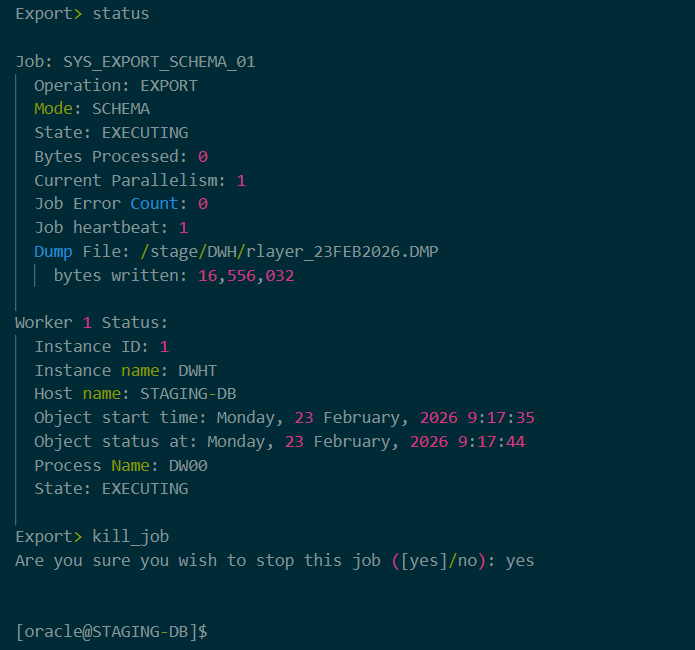
Export> kill_jobYou will be asked to confirm. Type YES.
What happens here? Oracle stops all worker processes, deletes the “master table” (the log of the job’s progress), and cleans up the dump files if the job had created them (n need to manually deleting them).
Warning: There is no “Undo” button here. Once you kill a job, you cannot resume it. You have to start from scratch.
Scenario 3: “I closed the window! The job is still running, but I can’t control it!”
(The “Orphaned” Job)
This is the most common “oops.” You kicked off a job, your SSH session timed out, or you closed Putty. The job is still running in the background database, but you can’t see it.
How do you kill or stop something you can’t see?
Step 1: Find the Job Name
You need to query the database to see what Datapump jobs are currently attached or running.
Log into SQL*Plus and run:
SELECT owner_name, job_name, operation, job_mode, stateFROM dba_datapump_jobsWHERE state != 'COMPLETED';This will show you the JOB_NAME. Let’s say it’s SYS_EXPORT_TABLE_01.
Step 2: Re-attach
Go back to your command line (not SQL*Plus). You don’t need to know the password or schema again if you are using OS authentication, but you do need to connect as a privileged user (usually the one who started the job or a DBA).
expdp userid=/ attach=SYS_EXPORT_TABLE_01You will be dropped right back into that Export> prompt. Now you can use stop_job or kill_job just like in the previous scenarios.
The “Last Resort Option” (Use with Extreme Caution)
Sometimes, things are broken. The master table is corrupted, or the job is stuck in a “Defining” state and won’t let you attach. You cannot attach to kill it normally.
If you absolutely must get rid of the job and normal methods fail, you can drop the master table manually.
- Find the Master Table Name:
Datapump master tables usually look like the job name. If your job name wasSYS_EXPORT_TABLE_01, the table is likelySYS_EXPORT_TABLE_01in the schema of the user who ran it. - Drop the Table:
Log in as that user (or SYS) and drop it.sql DROP TABLE sys.SYS_EXPORT_TABLE_01 PURGE;
Effect: This kills the Data Pump job process instantly. It stops the background workers. However, this is the “messy” way. It might leave some orphaned processes in the OS that you’ll need to clean up manually. Only use this if the attach method fails.
Quick Reference Cheat Sheet
| Action | Command (in Interactive Mode) | Does it preserve the Master Table? |
|---|---|---|
| Pause | stop_job=immediate | Yes (You can resume later) |
| Resume | start_job | N/A |
| Cancel/Kill | kill_job | No (Cannot resume) |
| Exit Client | exit_client | Yes (Job keeps running) |
| Check Status | status | N/A |
A Final Pro-Tip
If you are running a massive import or export, always use a parameter file (parfile) and include the JOB_NAME parameter.
expdp parfile=my_export.parInside my_export.par:
directory=DATA_PUMP_DIRdumpfile=export.dmplogfile=export.logschemas=MY_SCHEMAJOB_NAME=MY_CUSTOM_JOB_NAME_2026Giving it a custom name makes it 10 times easier to find and attach to later using expdp attach=MY_CUSTOM_JOB_NAME_2026.
Let us see some screen shots from an actual execution of kill_job command:
Happy data pumping (and stopping)!
Ahmed
 Ahmed AbdelFattah Blog !